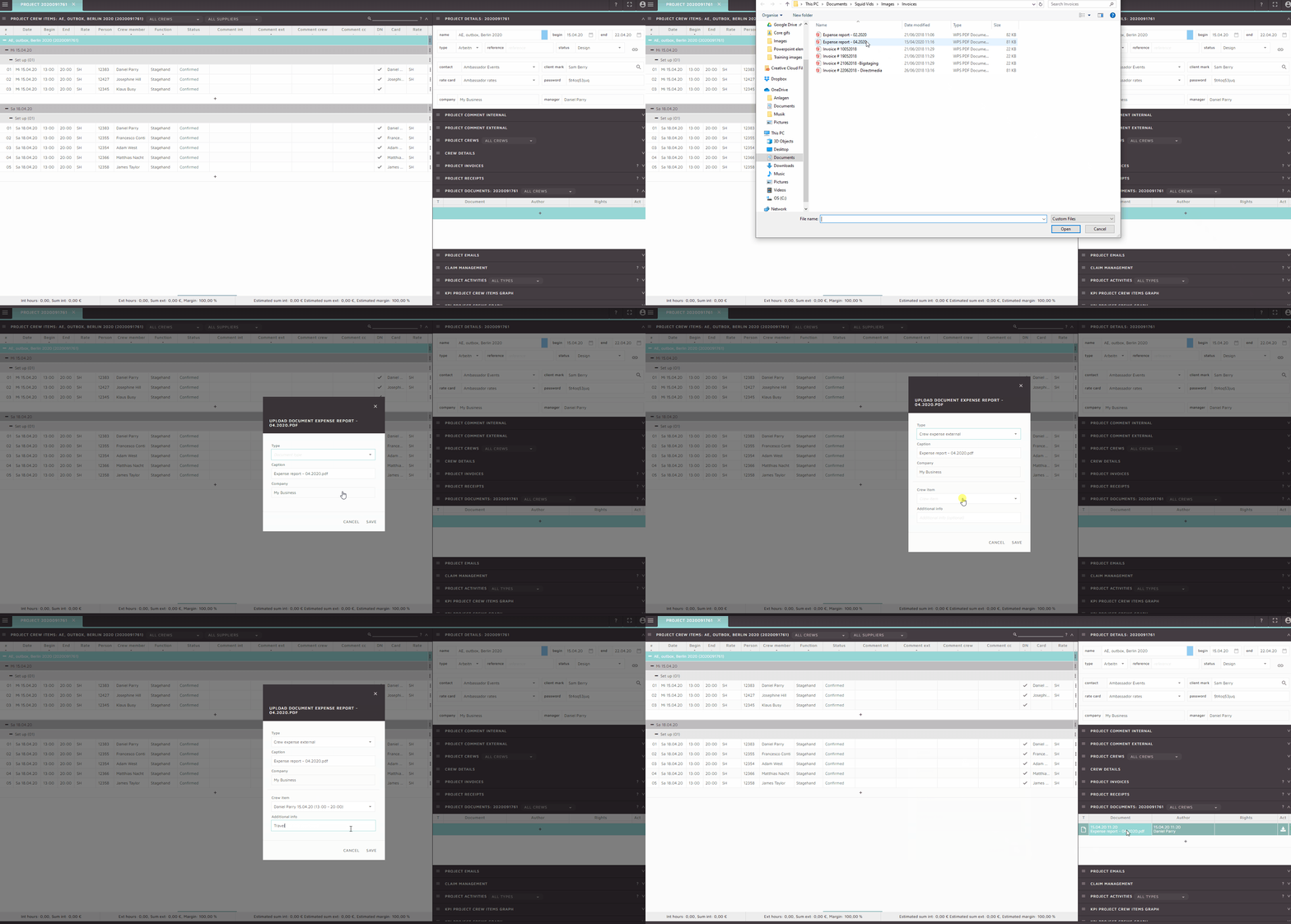
A crew member expense report is sent to an external payroll company when additional pay is required for an expenses such as parking or catering.  The expense report can be uploaded to the project in SquidWeb and then assigned to the related crew member (PCI).

To do this:

  • Upload a new document to the project documents container by selecting the ‘+’ icon or selecting “upload new document” from the container menu.
  • Select the file from your device.
  • Select document type “Crew expense external”, this will trigger the “crew item” and “additional info” fields to be displayed in the upload dialog.
  • Select the crew item (PCI) the expense report is for and add any additional info needed to explain what the expense is for.


Once the report is uploaded it will be available for preview and download in the project documents container.

Crew members may also upload their own expense report from the mobile app, a tutorial for how to do this will be available to send to crew member soon.

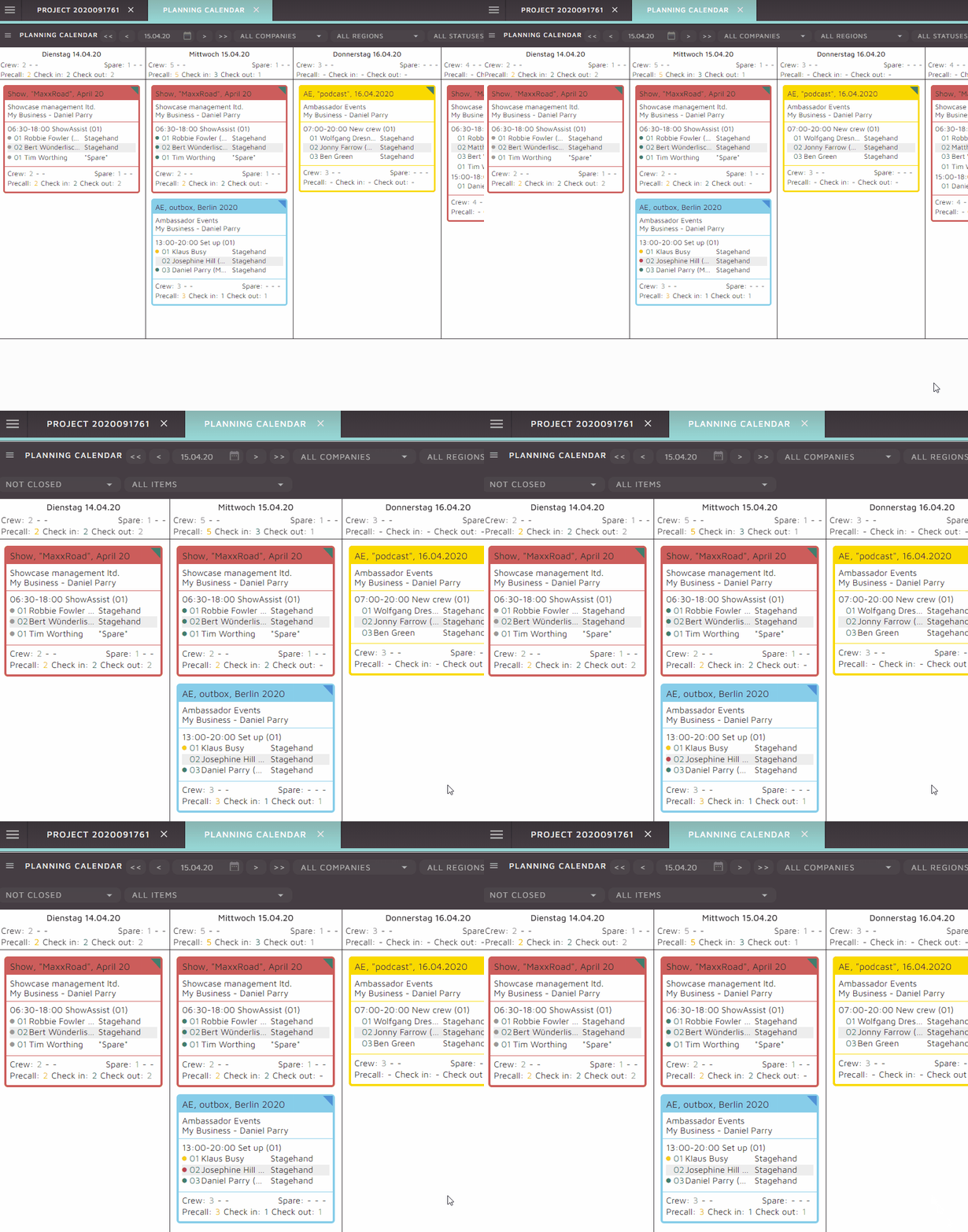
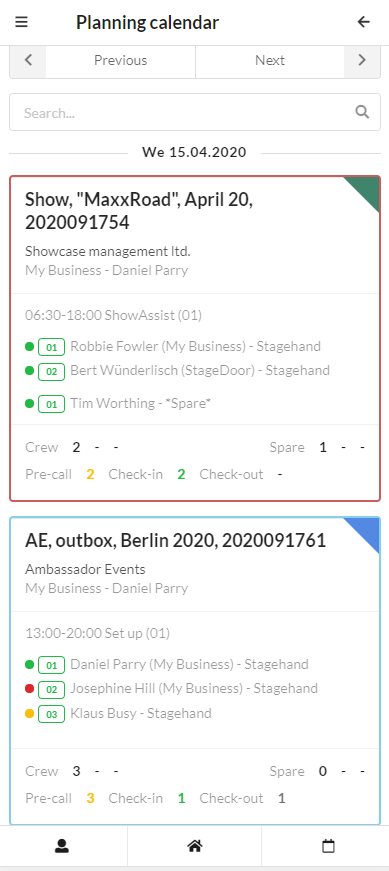
The pre-call indicator displays the current status of the crew member’s check in process. A colored circle will be displayed next to the crew members name, in both the mobile and desktop version of the planning calendar.

This will help planners stay abreast of the current situation without the need to contact the crew chief or act accordingly if any issue are identified by the status indicators.
The status indicator is located next to the crew members name in the planning calendar crew card.

This feature is available in the desktop and mobile version of SquidWeb (functionality is the same in both iterations).


The colors indicate the following status:
  • Empty dot – No action has been taken by the crew member
  • Yellow dot – Pre call done
  • Green dot – Checked in
  • Grey dot – Checked out
  • Red blinking – Something has gone wrong –
    (for example, pre call not been complete but check in has.)

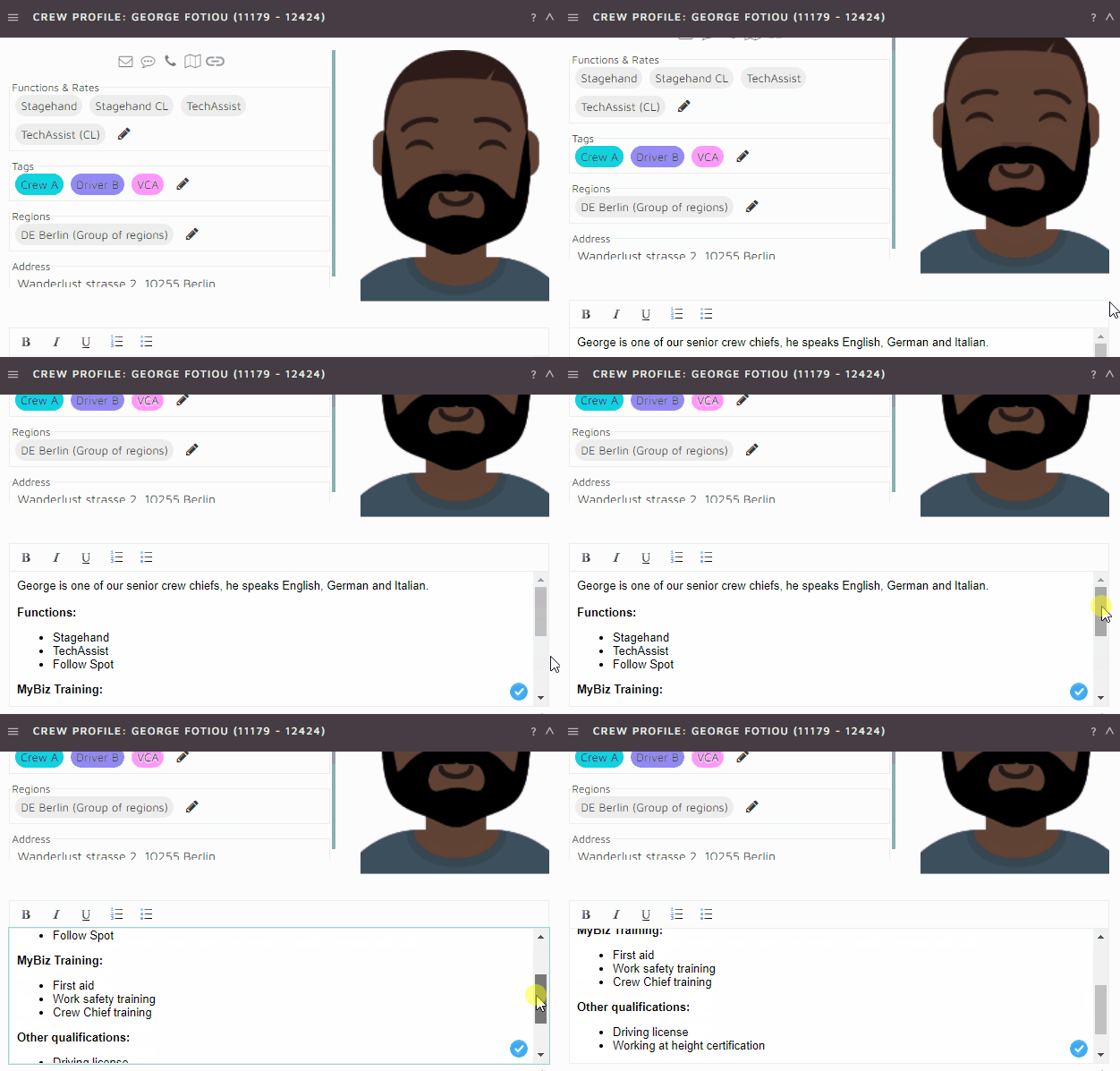
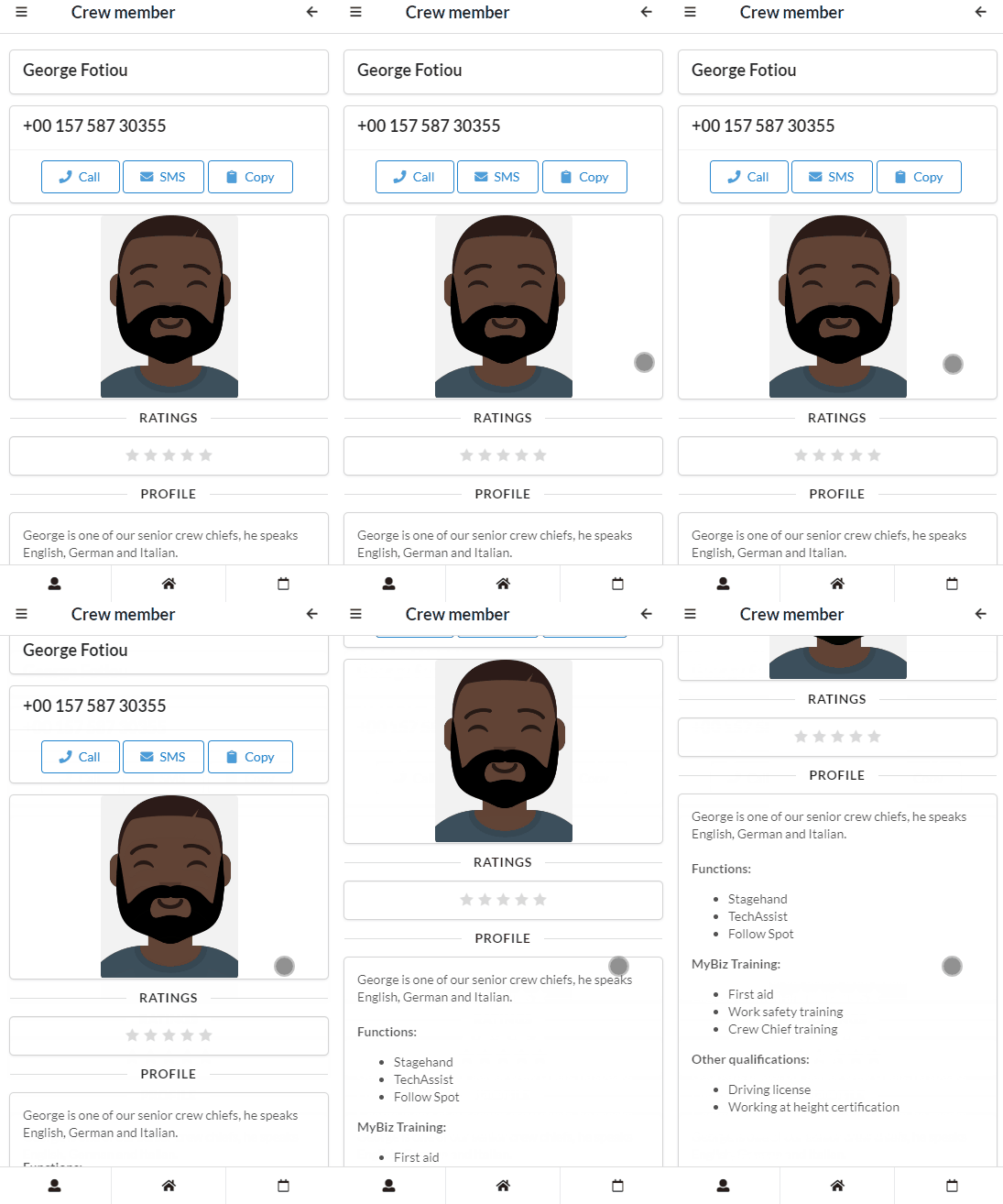
The crew profile comment field is located at the bottom of the crew profile container. Any information added to the crew profile comment will be displayed in the crew member details card in the mobile app for colleagues and clients to read.

This can be used to showcase the crew member’s functions, company trainings or any other qualifications they may have in order to give the client or crew leader an idea of whom the crew member is at a glance:


[The crew profile comment field as shown in the crew profile container in the crew calendar]


[The crew profile comment displayed in mobile app when the user selects the crew member from the crew list]

Update the crew comment
This field should be updated periodically by office staff after each meeting. It is important that this field is updated regularly as the crew member progresses and learns new skills to keep the clients and other crew members up to date on any new information.
The field can be edited or added to at any time from the crew profile container.

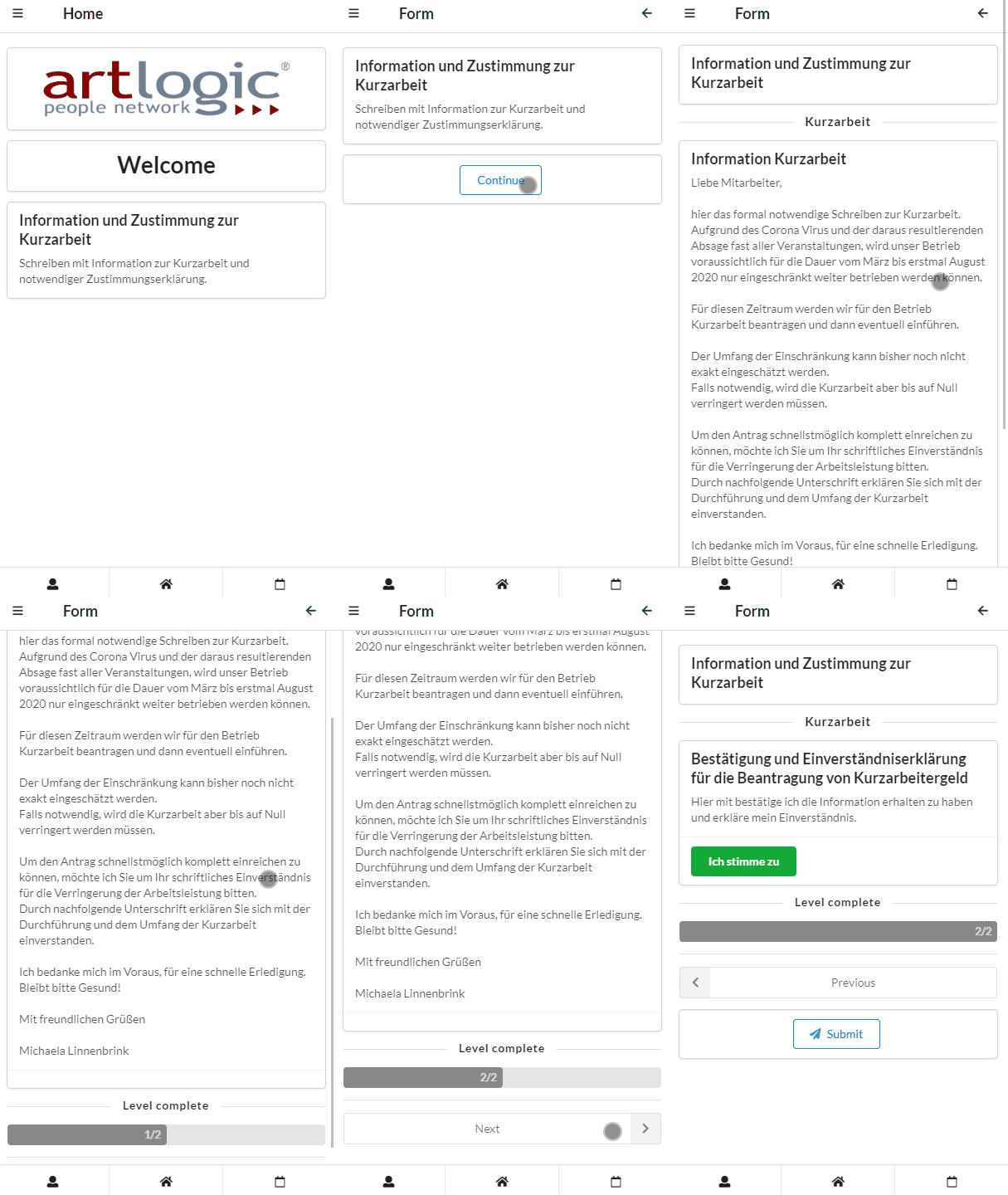
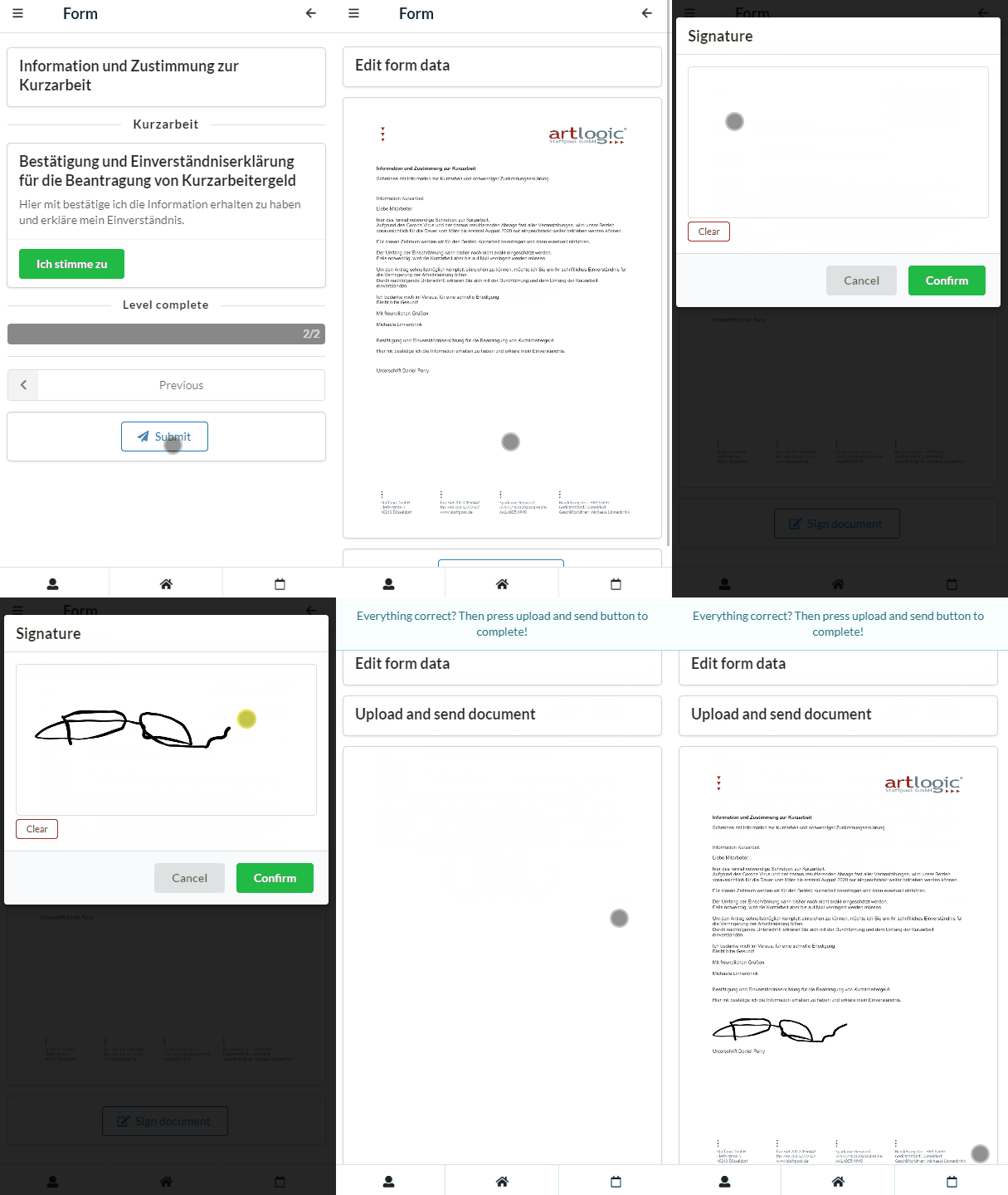
The Kurzarbeit form is a document that requires the one time signature of the employee.

The form will be available on the home page of the mobile app, opening this form will direct the user to the Kurzarbeit information for and allow them to both confirm they understand information and then sign the  document before returning it to the office and sending a copy to the user via email.

Work flow

  • Login to SquidWeb mobile,
  • Open the Kurzarbeit form,
  • Read the information,
  • Confirm receipt and understanding of the information,
  • A preview of the PDF will be generated for review,
  • Select “Sign Document”,
  • Enter signature in free text area and select “Confirm”,
  • A sign preview of the PDF will be generated,
  • Select “Upload and Send document”,
  • A copy of the signed document will be sent via email to the user,
  • A copy of the signed document will be saved in the users Personal Details container.

Crew tags can be assigned to a crew member from their crew profile. Tags are used to filter the crew into groups based – applying a tag filter will show only the crew members with that tag assigned to their profile.

New tag groups can now be created and edited anytime. New tag groups can be color coded and existing tag groups can be edited and customized.

Open the tags dialog from any crew member profile to access these option. Here is a quick guide to show you how:

A bulk, or group, email can be sent from SquidWeb in a number of ways. Skip to the bottom for our tutorial video.

  1. From the Crew Planner
    Select “Send email” from the crew calendar container menu to trigger a new email window. This email will be sent to every member of the currently selected crew, so be sure to filter the crew calendar to the crew members you wish to contact before selecting “Send email”.
  2. From the Employees list
    Similar to the crew planner, select “Send email”, this time from the employees list container menu, and a new email window will be triggered. This email will be sent to every employee in the current list, so be sure to have the correct company and period selected first.
  3. From the Project details page
    In the project container menu, the “Send email” option can be used to send a bulk email to all crew members entered into the project. If the position has a crew member assigned to it, and that crew member has an email address assigned to their contact details, they will be included in the mailing list.
  4. From the Mailbox
    From the Email list container menu, select “New bulk Email”, unlike the previous two methods an email dialog will not be triggered right away, first you will be asked to select a mailing list to send the email to.
    A mailing list must be created beforehand. Any mailing list can be created, such as ‘all employees’, ‘all clients’ or ‘all contacts in the city of Paris’, it is simply a list of persons from within your database.
    To create a new mailing list, please send a request to support with your requirements, ie “A new mailing list to all clients in Spain” and we will add it for you.

    This method should be used to send Newsletters or company announcements.
    Templates
    Like many things in SquidWeb, templates can be created to make things easier. Bulk email templates are created in the templates page with the template type “EmailMessage”.
    Bulk email templates are a little more complex then usual templates as HTML can be used to add images, coloring and logos. A tip video for this will be available soon.Our video below will show you how to work with each tool:


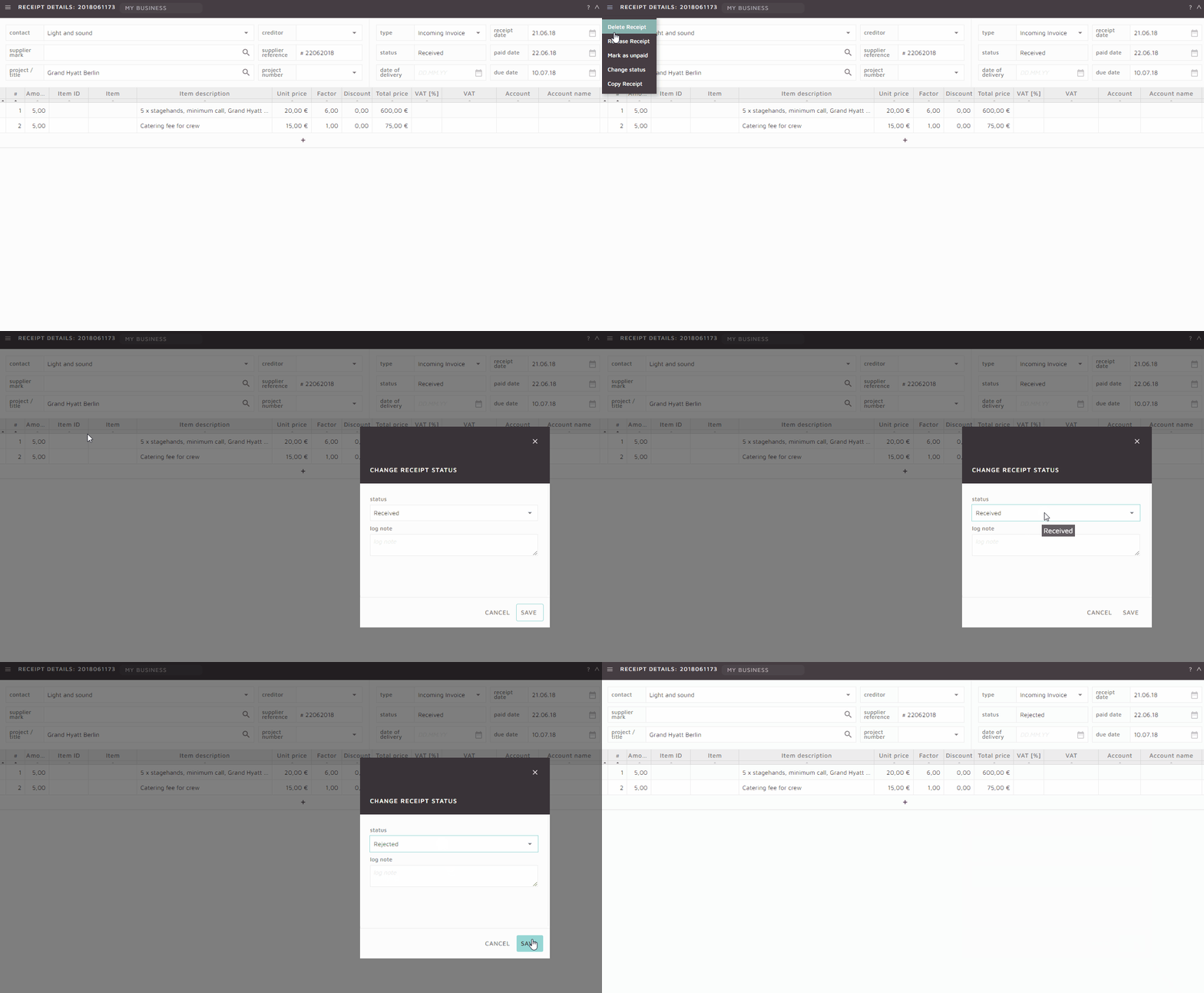
Planners can create and edit receipts for invoices that relate to their own projects. Accounting staff can also create internal ToDo’s to give planners access to receipts.

Receipts may be created to pay incoming invoice from suppliers or to reimburse employees. They are created in the same way an invoice or quote is written, except the items are for outgoing payments not fees to clients.

All attachments added to a receipt must be in PDF format.


Receipts created within Project Documents


Planners can also create receipts directly within a project under the project documents container.

A Google doc can be uploaded to company settings with variables in place of interchangeable information and used as a template for reoccurring documents.

For example, a staff contract can be created in Google docs with variables in place of the employees name, contract details and starting date. The link to the document can then be added to SquidWeb so when a new contract is created the document can be generated with all the relevant information in place.

Check out our tutorial to show you exactly how:

Pfändung documents can be uploaded to SquidWeb and the system will remind you how much is owed each payroll until the debt is settled.

For quotes are sent often or to multiple contacts (sending crew service conditions to new clients for example), a quote template can be created.
A template is created just like any other quote but the type is changed to “Template”, it can then be used at any time when created a new quote to save you the task of rewriting the same items again and again.

Simply leave the “amount” column empty so the template can be adjusted to meet and client request.

Email templates can also be created to accompany quote templates, saving you time writing email text and providing clients with a uniform and professional service.